A video wall straight from your NVRs
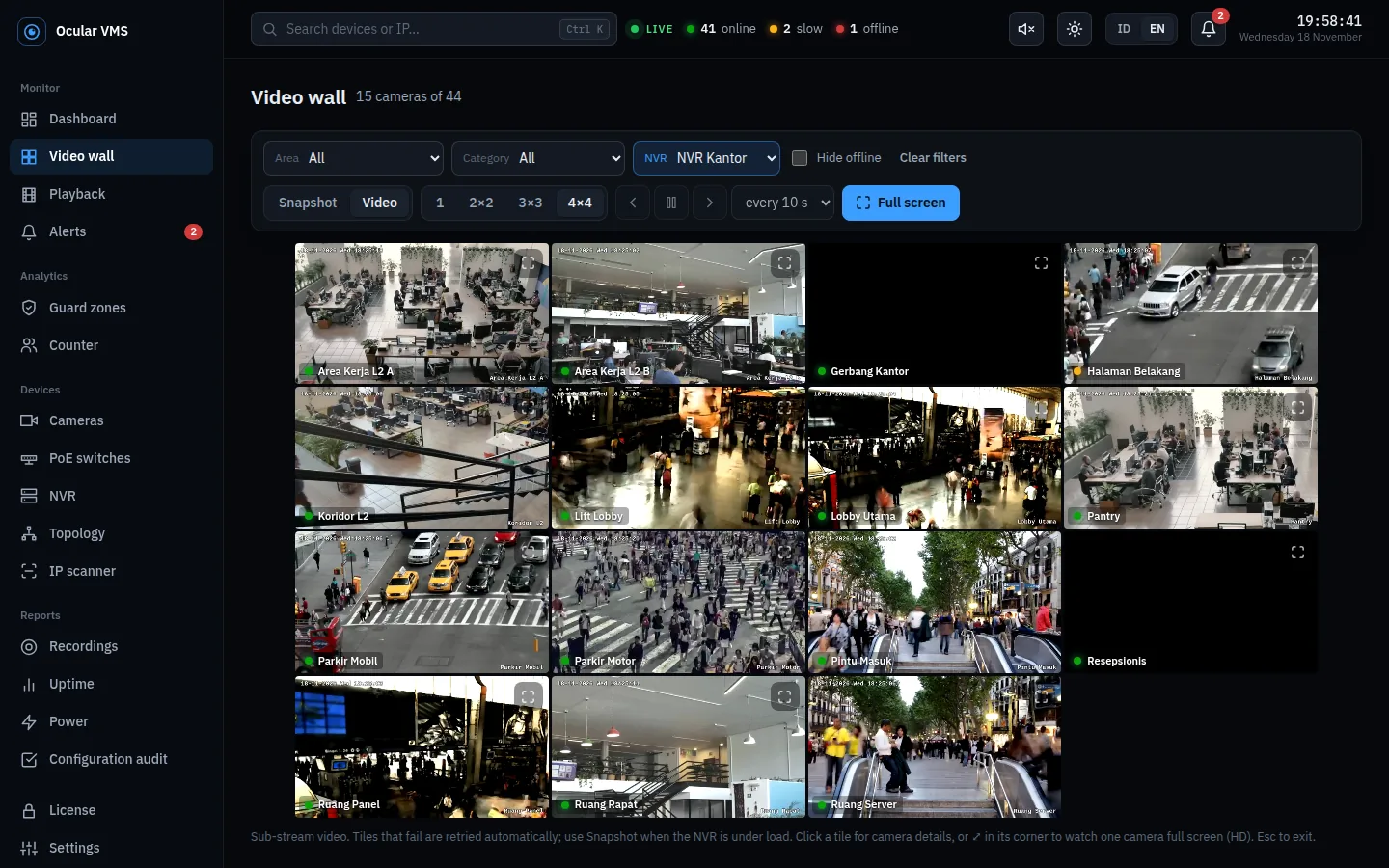
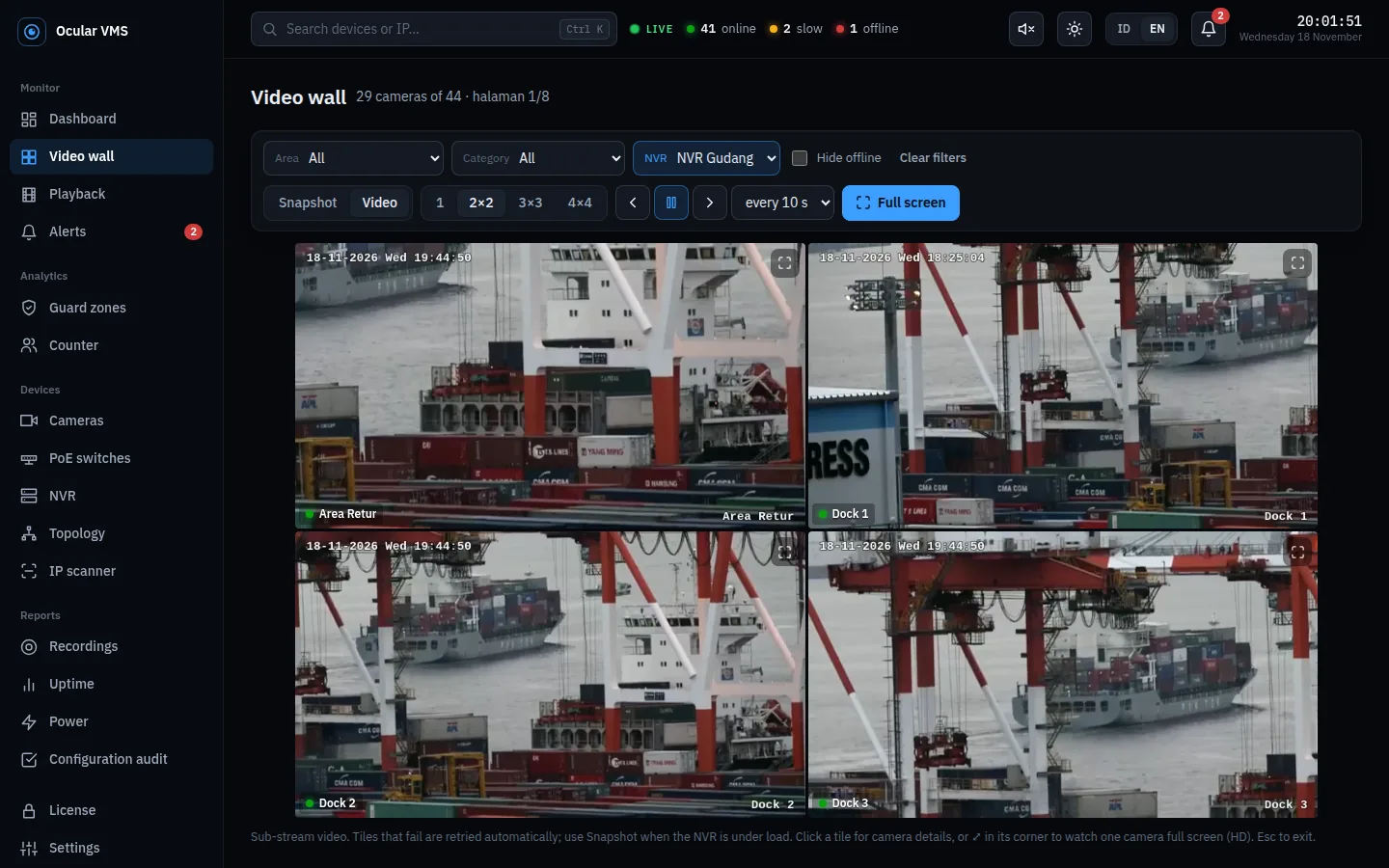
Up to 16 cameras per screen as live video, one camera full screen in HD, and automatic page rotation for the control room monitor. Filter by area, category, or NVR.
Ocular VMS checks every Hikvision camera, NVR, and PoE switch around the clock. The moment something drops, stops recording, or a disk starts failing, your team knows on the control room screen and in Telegram.
Almost every incident ends with the same sentence: "that camera had been down for a while". Ocular VMS exists to make sure that does not happen.
A chewed cable, a burnt adapter, or a faulty switch port. On the NVR screen it is just one black tile among dozens, and it is noticed weeks later.
The camera looks online but is not recording because of a wrong schedule, a full disk, or a failing disk. It is discovered exactly when an incident needs the footage.
Which switch and port is this camera on? Without records, one fault can cost half a day of climbing ladders.
Ocular VMS runs on a server or mini PC on the CCTV network and talks to your devices over official protocols: ISAPI for Hikvision NVRs and cameras, SNMP for switches, and ping for everything.
Every image below is the real application. There are no add-on modules: one license unlocks everything.
Up to 16 cameras per screen as live video, one camera full screen in HD, and automatic page rotation for the control room monitor. Filter by area, category, or NVR.
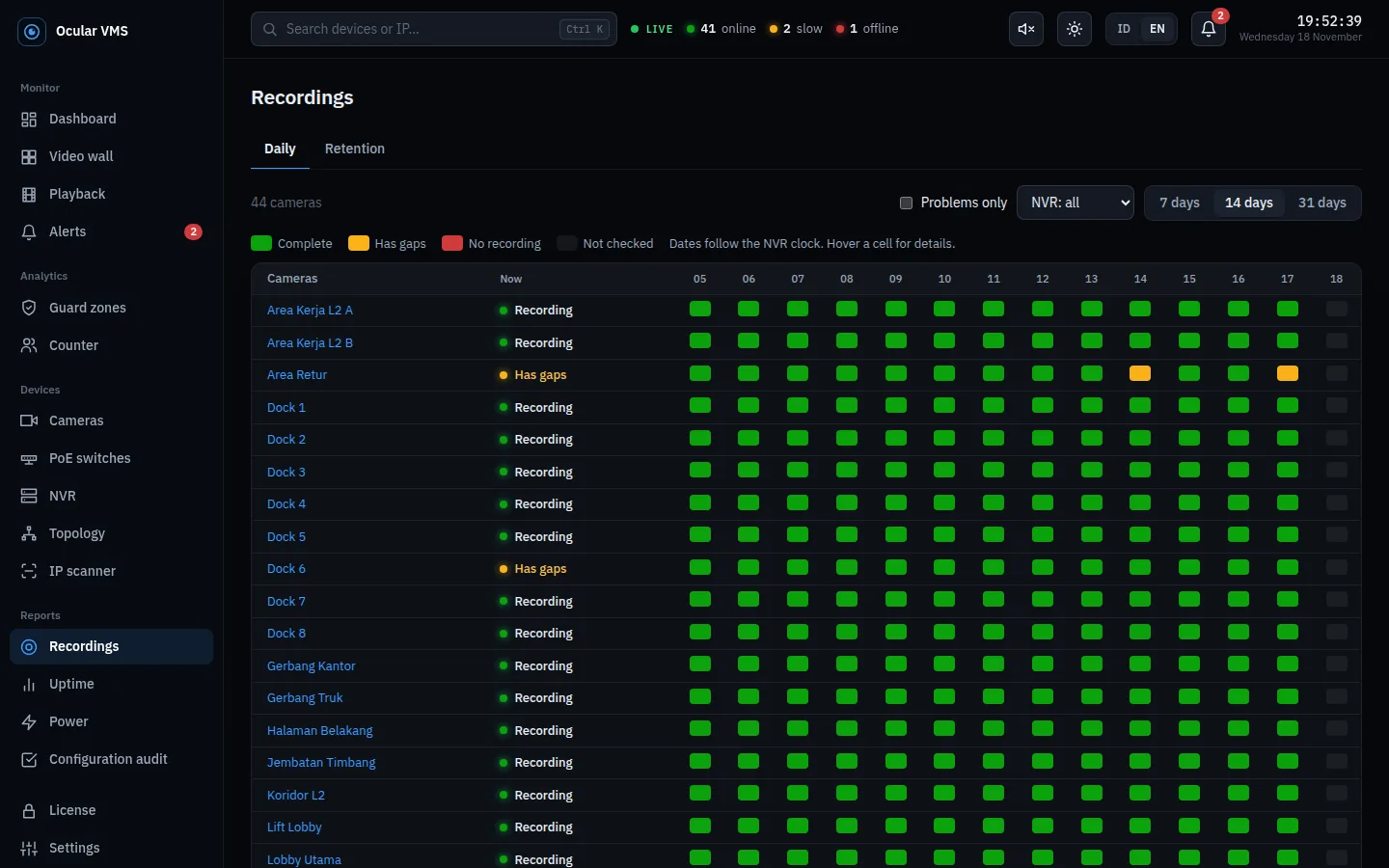
Every 15 minutes the NVR is asked directly when each camera last recorded and whether there are gaps. One table shows which cameras recorded fully, had gaps, or did not record, day by day.
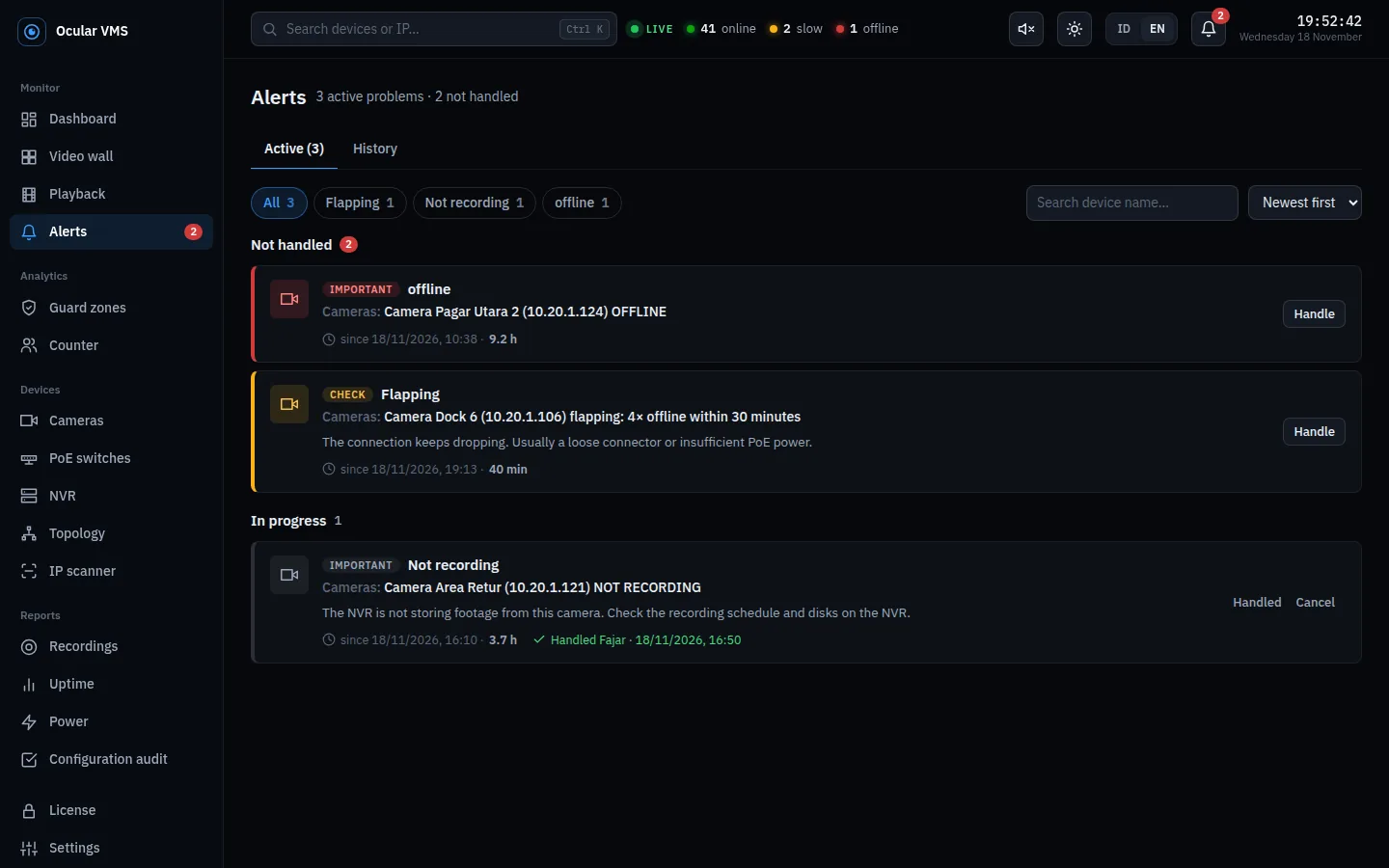
Each alert says what happened, where, what to check, and since when. A dead switch is one alert, not dozens. Technicians mark alerts as being handled, and the history gives you mean time to repair.
Status and usage of every disk, daily SMART (healthy, warning, failing), NVR load, and clock drift. A failing disk shows up before its footage is lost.
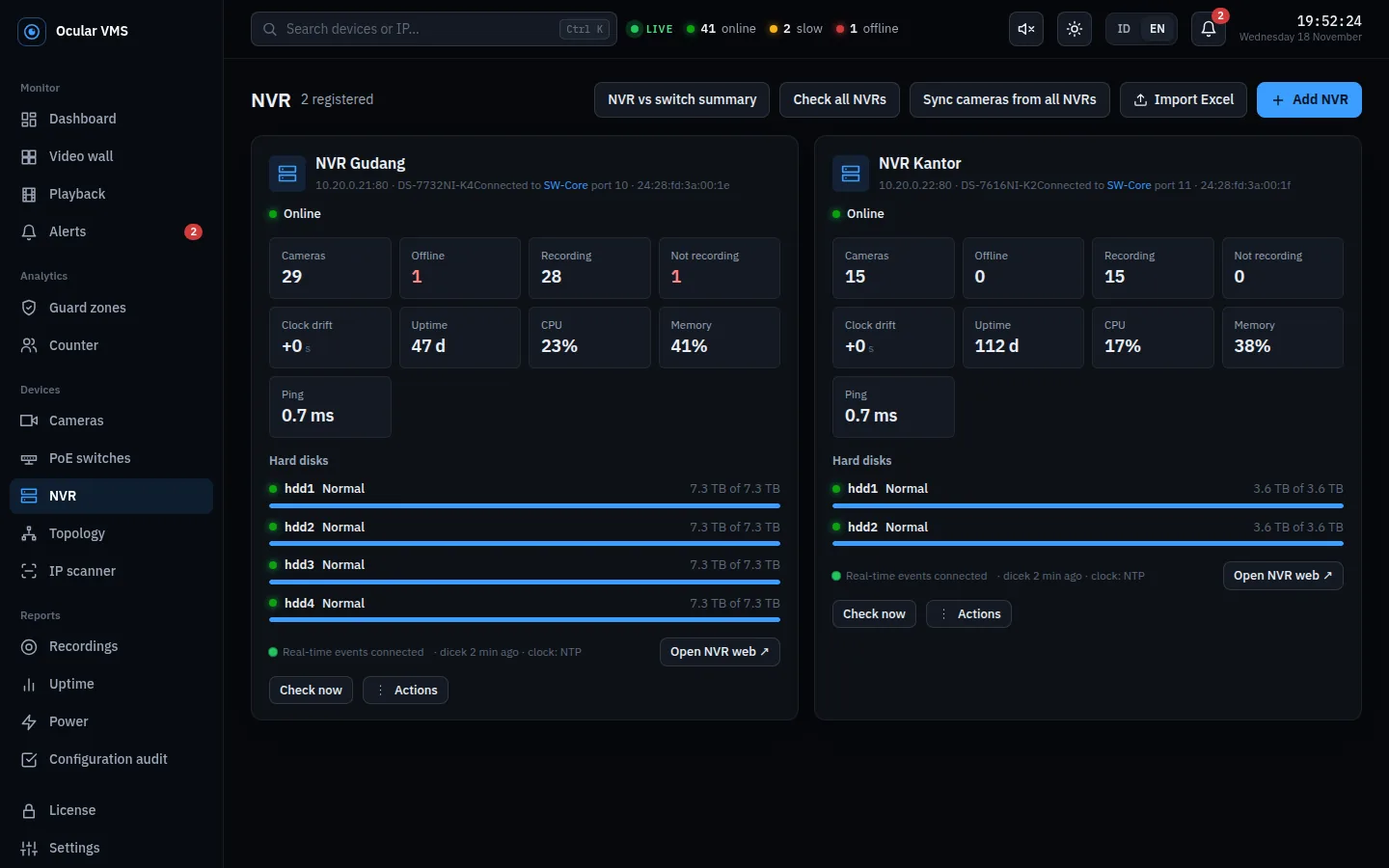
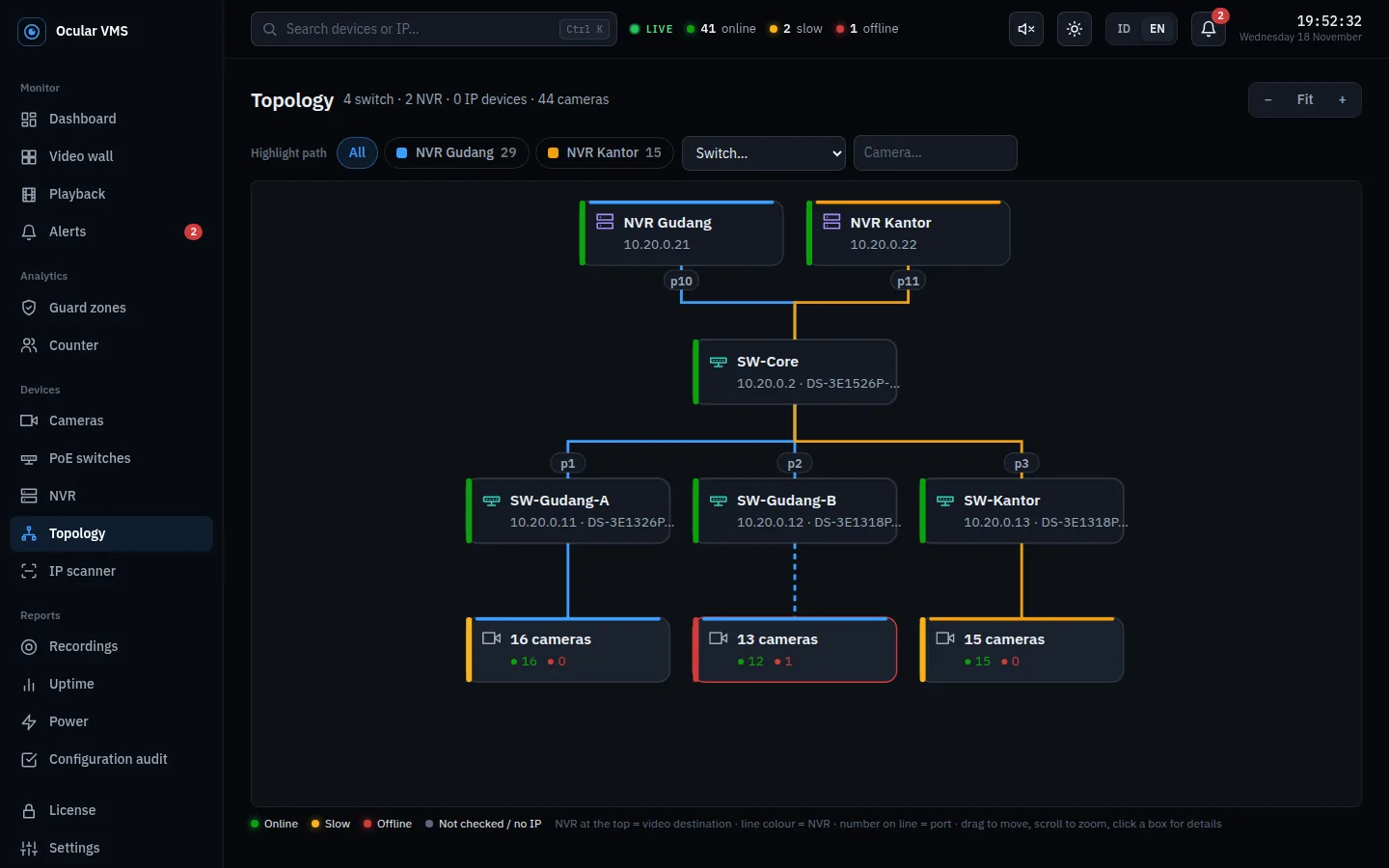
Switches are read over SNMP: link, PoE, and traffic per port. Camera ports are filled in from the MAC table, and the topology shows each camera's path to its NVR. Technicians know which switch and port to go to.
Loading docks, racks, and perimeters with dozens of cameras across several NVRs.
Large production areas, scattered switches, and a need for evidence when incidents happen.
Lobbies, work floors, server rooms, and parking on one screen.
Tills, stock rooms, and entrances that must be recorded every day.
Many areas and a small IT team that cannot check cameras one by one.
Clean handovers with per-switch reports, and measurable maintenance for clients.
| NVR alone | NVR + Ocular VMS | |
|---|---|---|
| Live view and playback | Yes | Yes, for every NVR on one screen |
| A dead camera is noticed | When someone spots a black tile | In about 90 seconds, on screen and in Telegram |
| A camera stops recording | When the footage is needed | Checked every 15 minutes, per camera |
| Recording history per day | Checked by hand, camera by camera | One table for every camera |
| Disk starting to fail (SMART) | When the disk has already failed | Read daily, with a warning |
| Which switch and port a camera is on | Manual records or a search on site | Automatic from SNMP, with topology |
| Uptime and handover reports | Not available | Ready to export to Excel and print |
Most are already in place on a normal Hikvision installation. The 7-day trial is the easiest way to confirm on your own network.
From a computer on the same network, open this address in a browser (replace the IP with your NVR's), then enter the NVR username and password. If XML text appears with the NVR model and serial number, ISAPI is enabled and Ocular VMS can connect.
http://192.168.1.100/ISAPI/System/deviceInfo

<DeviceInfo>
  <deviceName>Network Video Recorder</deviceName>
  <model>DS-7732NI-K4</model>
  <serialNumber>DS-7732NI-K4...</serialNumber>
  ...
One license covers one server, with no camera limit. All features, updates, and support included.
Not sure yet? Try every feature free for 7 days, no payment needed. Prices include payment fees. A renewal continues from the previous license's end date, so no days are lost.
Run one command on a Linux or Windows server. Docker and every component are set up for you.
In License, click Start free trial, register with your email, then Get license from portal. Every feature is unlocked for 7 days.
Enter each NVR's IP and account. Every camera is imported straight away and monitoring starts within a minute or two.
Linux (Ubuntu, Debian), over SSH:
$ curl -fsSL https://ocularvms.my.id/install.sh | sudo bash
Windows 11 or 10, in PowerShell:
PS> irm https://ocularvms.my.id/install.ps1 | iex
All data and video stay on your server and NVRs. No cloud, no third-party accounts, and the application keeps running without internet once the license is active.
Ocular VMS does not change NVR, camera, or switch settings unless you ask it to, for example to align streams or sync clocks.
Admin and view-only accounts, sign-in lockout after repeated wrong passwords, a full activity log, and HTTPS when needed.
Ocular VMS is built for Hikvision NVRs and IP cameras that support ISAPI. Check ISAPI in one minute as shown under Requirements, then confirm everything works with the free 7-day trial. Ping and switch monitoring also work with other brands.
No. Ocular VMS connects to your existing NVRs and cameras with the accounts you already have. Device settings are not changed unless you ask for it.
A paid license does not. The license is checked on your own server; internet is needed for installation, activation, updates, and Telegram. During the trial the server must be online.
The license sets no camera limit. A 4-core server with 8 GB RAM handles dozens to hundreds of cameras; analytics (people counting, guard zones) need extra CPU.
Install Ocular VMS on your server, open License, and click Start free trial. Register with your email and the 7-day trial starts right away with every feature. Once per server and per NVR; the server needs internet access during the trial. When the trial ends, monitoring features are locked until you buy a license; data and settings are kept.
Reminders appear in the application and by email before it expires. After expiry every feature keeps working for 7 days. After that only the video wall stays available. Data and settings are kept and unlock as soon as you renew.
Release the license on the old server under License, then continue on the portal. A license is issued for the new server with the same remaining time. If the old server is broken, move it from your customer account.
No. You get the application, the guides, and support for usage, activation, and application issues. Network installation and camera or NVR configuration are not included; you can use your own technician or installer.
Issued licenses cannot be refunded. That is why there is a free 7-day trial: make sure Ocular VMS suits your devices and network before buying. Details are in the terms of sale.
Install in 15 minutes and try every feature free for 7 days, with no card and no payment.